Connecting Your Camera to Your WiFi
Before Setup
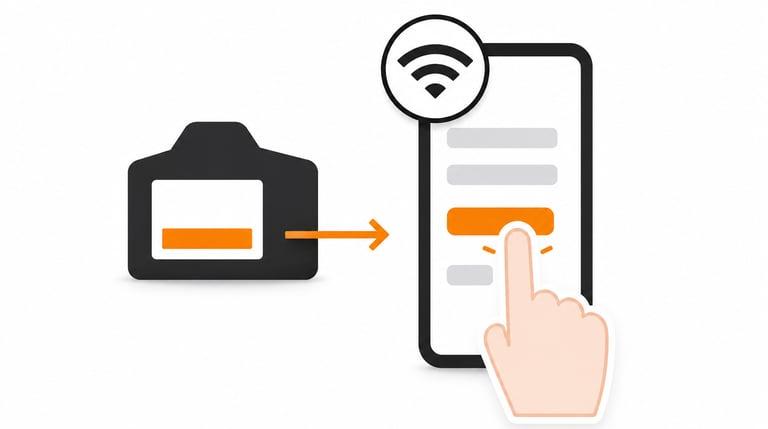
Before connecting the camera, please check:
the battery is above 20%
your phone is connected to your home 2.4GHz WiFi
the camera is close to the router during setup
Blue Flashing Light
A flashing blue light usually means the camera is ready to connect.
If the camera does not connect:
first, move the camera closer to the router and try again
if that does not help, carefully check the WiFi password
if the problem continues, fully charge the battery and retry setup
if setup still fails, try resetting the camera
Most connection issues are simple setup issues and can usually be resolved quickly.
Resetting the Camera
To reset the camera:
hold the reset button for around 10 seconds
wait for the camera to restart
repeat setup
Hotspot Mode vs WiFi Mode
Hotspot Mode
In hotspot mode, the phone connects directly to the camera.
Live viewing only works while your phone stays within roughly 5–10 metres of the camera.
Home WiFi Mode
In WiFi mode, the camera connects to your home router.
This allows:
notifications
playback access
live viewing from anywhere
Most customers will want to use this mode for normal everyday use.
Our WiFi bird box camera is designed for simple garden setup using standard 2.4GHz home WiFi
WiFi Signal
For the best experience:
check your phone’s WiFi signal where the camera will be installed
avoid placing the camera too far from the router if possible
A stable WiFi signal helps improve reliability and battery performance.
View our WiFi wildlife camera kits designed for live viewing, motion alerts and easy 2.4GHz home WiFi connection.